How to pay safaricom wifi via mpesa: How to Pay Safaricom Wi
How to pay safaricom wifi via mpesa - Discover how to pay Safaricom WiFi via M-PESA with our 2026 guide. Get instant Paybill numbers, use the M-PESA app, and tr

We’ve all been there—that dreaded moment the WiFi cuts out right when you need it most. Getting back online quickly is the top priority, and thankfully, paying for your Safaricom WiFi with M-PESA is incredibly fast.
The go-to method for most people is using the Lipa na M-PESA Paybill service. All you really need are two key details: Safaricom Home Fibre's business number, which is 150501, and your specific account number. With those in hand, you can settle your bill and be back to browsing in just a few minutes.
Your Quick Guide to Safaricom WiFi M-PESA Payments

When your internet connection drops, the last thing you want is a complicated payment process. You need a straightforward way to pay your bill and get things running again. M-PESA is easily the most popular and efficient way to renew your Safaricom WiFi, offering a few different options to suit your preference.
Whether you're using a simple feature phone or the latest smartphone, the process is simple once you know the steps. This guide will walk you through the most common payment methods so you can get your connection restored without any hassle.
Safaricom WiFi M-PESA Payment Methods at a Glance
So, which M-PESA option is right for you? This quick comparison table breaks down the main methods to help you choose the most convenient way to pay your Safaricom WiFi bill.
Method | Best For | Requirements |
|---|---|---|
M-PESA Paybill (USSD) | Universal access, even without an internet connection. The classic, reliable choice. | Any phone with a Safaricom SIM, Paybill Number (150501), and your Account Number. |
M-PESA App | Smartphone users who prefer a modern, visual interface and easy payment tracking. | A smartphone with the M-PESA app installed and an active internet connection (you can use mobile data). |
mySafaricom App | Managing all your Safaricom services (voice, data, and fibre) in one single application. | A smartphone with the mySafaricom app installed and an internet connection. |
For Internet Service Providers, seeing how customers prefer to pay highlights the importance of flexible payment integrations. You can learn more about implementing similar user-friendly options by exploring the best ISP billing system in Kenya.
Each of these methods gets the job done, so it really just comes down to what you find easiest. Now, let’s dive into the detailed steps for each one.
Choosing Your M-PESA WiFi Payment Method
When it's time to pay your Safaricom WiFi bill, you've got a few M-PESA options. Knowing the ins and outs of each can make the process smoother and save you from common headaches. Your best bet usually comes down to what's most convenient for you in the moment.
You can go the old-school route with the USSD menu, use the sleek M-PESA app, or handle it through the mySafaricom app. Each path has its own perks, depending on your situation.
The USSD method—which you get to by dialling *334#—is the most reliable option, hands down. It works on any mobile phone, whether it’s a simple feature phone or the latest smartphone, and you don’t even need an internet connection. This makes it a lifesaver if your WiFi is already off and you’re out of mobile data.
On the other hand, both the M-PESA and mySafaricom apps give you a much more visual and straightforward experience on a smartphone. You can see your payment history at a glance and even save your bill details, which makes paying your bill next month a whole lot faster.
Comparing App vs USSD Payments
For most smartphone users, the app is the way to go. It’s simply more convenient. Tapping through menus beats remembering and typing in codes, and the ability to save Safaricom's Paybill number (150501) and your account number seriously cuts down on the risk of typos. The only catch? The apps need an internet connection, so you’ll have to use your mobile data if your home fibre is already disconnected.
It's no surprise M-PESA is the go-to for this. The platform is a giant in Kenya. With over 34 million subscribers, it handles more than 70% of the nation's digital payments, becoming the standard for everything from buying groceries to settling utility bills. This incredible reach, as highlighted in reports on M-PESA's statistical growth on Electroiq.com, provides a rock-solid foundation for services like renewing your WiFi.
For smaller businesses, like local cyber cafes or community ISPs, embracing this kind of automated payment is a game-changer. It offers customers the same seamless experience they've come to expect everywhere else. Features like instant service activation upon payment and automated reminders, as documented at https://docs.centipidbilling.com, are essential for modern ISPs. It's a bit like how people use prepaid vouchers to get online instantly. In fact, you can see our guide on how internet vouchers can simplify access for your own customers.
Ultimately, whether you choose the trusty USSD code or a polished app, M-PESA ensures your Safaricom WiFi payment is always just a few taps away.
Paying Your Bill With M-PESA Paybill
When it comes to paying for your Safaricom WiFi, using the M-PESA Paybill is the classic, most reliable method. It’s been around forever for a reason—it just works. The best part is you don't need a fancy smartphone or even an internet connection to get it done. Any phone that can access your M-PESA menu will do.
Before you start, you'll need two things: the Paybill number and your account number.
Get Your Details in Order
First, let's talk numbers. The official Safaricom Home Fibre Paybill number is 150501. You can save this in your contacts to make things easier next month.
Next, you need your unique fibre account number. Safaricom sends this via SMS right after your installation. If you’re like me and have a million old messages, just search for "Safaricom Home" in your SMS inbox. You can also find it on any previous M-PESA payment confirmation messages. If you’ve deleted everything, a quick call to customer care will sort you out. Just be sure to have this number ready before you open M-PESA.
This diagram breaks down the different ways you can get to the M-PESA payment screen, whether you're using a simple feature phone or the latest app.

As you can see, no matter the device, there’s a direct path to settling your bill.
Making the Payment and Getting Confirmation
With your details in hand, it’s time to pay. Head over to the Lipa na M-PESA menu, select 'Pay Bill', and punch in the business number: 150501. The next prompt will ask for the account number—this is where you enter your unique fibre account number. Finally, enter the exact amount for your monthly package before putting in your PIN.
For instance, let’s say your bill is KSh 3,999. You would:
Go to your M-PESA menu and choose Lipa na M-PESA, then Pay Bill.
Enter 150501 as the Business Number.
Enter your personal Fibre Account Number.
Enter the amount: 3999.
Now, pay close attention to the Hakikisha screen that pops up. This is your last chance to make sure your money is going to the right place. It should clearly say "Safaricom Home Fibre." A quick double-check here can save you a massive headache later.
Once you enter your PIN and hit send, you should get two text messages almost immediately. The first comes from M-PESA, confirming the transaction. A moment later, a second SMS from Safaricom will land in your inbox, confirming they've received the payment and your service is renewed. It's a pretty seamless process.
For other ISPs looking to offer this kind of smooth payment experience, you can learn how to set up similar automated systems. Check out our detailed guide on ISP billing with M-PESA mobile money integration to see how platforms like Centipid, whose features are listed on centipidbilling.com, make this happen.
Paying with the M-PESA and mySafaricom Apps
If you're like me and prefer a more visual way to handle your bills, the M-PESA and mySafaricom apps are a game-changer. Forget trying to remember USSD codes and sequences; these apps turn paying your Safaricom WiFi bill into a simple, tap-and-go experience right on your smartphone.
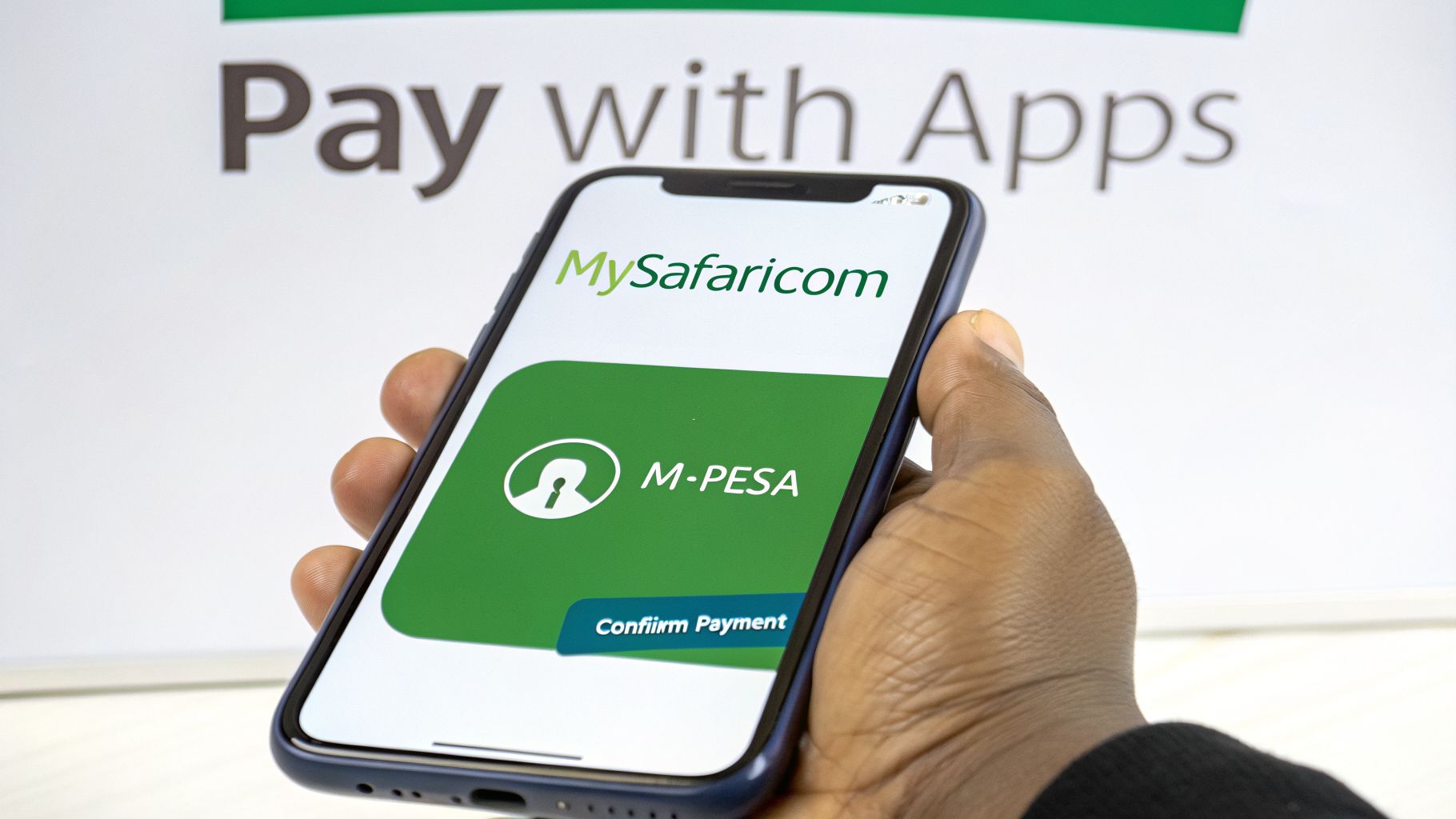
Honestly, the payment flow in both apps is practically the same. You'll head over to the 'Lipa na M-PESA' section, select 'Pay Bill', and you're pretty much there. It's a much more straightforward way to pay for Safaricom WiFi via M-PESA, with a clear interface guiding you.
Walking Through the Payment Process
Once you're on the Pay Bill screen, you have two options. You can either type in the business number 150501 directly, or you can just start typing "Safaricom Home Fibre" into the search bar. The app finds it for you, which is a fantastic feature to avoid the classic blunder of sending your money to the wrong Paybill. We've all been there.
After you've picked the right biller, the app will ask for your account number and the amount you're paying. This is where using an app really pays off compared to the old USSD method.
The real magic, though, is saving the biller details. Once you make your first payment, you can save "Safaricom Home Fibre" to your favourites. Trust me, this turns a monthly chore into a quick two-tap job.
This little feature is a huge time-saver. Next month, when the bill is due, you just open your app, tap your saved bills, select Safaricom Home Fibre, enter the amount, and pop in your PIN. Done.
Keeping Your Payment Records Straight
Another brilliant advantage of the apps is the built-in transaction history. SMS confirmations from M-PESA can easily get buried or accidentally deleted. The M-PESA and mySafaricom apps, however, keep a neat, organised log of every payment you make.
This makes it incredibly easy to:
Confirm a payment: Instantly see if last month's bill was paid and on what date.
Track your spending: Get a clear picture of what you're spending on internet over time, which is great for budgeting.
Sort out problems: If you ever need to call customer care, you can find the exact transaction code in seconds.
This kind of convenience and simple record-keeping is exactly why so many people now manage their finances through apps. With over 5 million Kenyans using the M-PESA app every month, it’s clearly become the go-to tool for handling everything from bills to savings. It’s a natural shift towards having more control and clarity over our finances.
Troubleshooting Common Payment Issues
We’ve all been there. You rush to pay your WiFi bill, hit send, and then realise you’ve made a mistake. Maybe you fat-fingered the account number or sent cash to the wrong Paybill. It’s a common slip-up, but thankfully, there are quick fixes for these payment headaches.
Let’s look at the most frequent problems and how to sort them out without the stress.
Sent Money to the Wrong Paybill or Account?
This is probably the number one mistake people make. Your fingers move too fast, and boom—the payment goes to the wrong place. If you catch it right away, you might be able to reverse it yourself.
Safaricom has an automated reversal service that can be a real lifesaver. Just find the original M-PESA payment confirmation SMS and forward it to 456. The key is to act fast, ideally within a few minutes, before the recipient can access the funds.
If that automated service doesn’t work, it usually means the money has already been withdrawn or used. In that case, your next step is to get in touch with Safaricom’s customer care team for help.
Payment Made, but the WiFi Is Still Off
This one is particularly frustrating. You get the M-PESA notification that your payment was successful, but your router is still stubbornly blinking red. What gives?
Usually, this is just a minor lag between the M-PESA system and Safaricom’s Home Fibre platform. Before you panic, give it about 15-30 minutes. The two systems often just need a moment to talk to each other. A quick reboot of your WiFi router can sometimes help nudge the connection back to life.
If half an hour passes and you’re still offline, it’s time to call in the experts. Dial 100 to reach Safaricom support. To make the call go smoothly, have these details ready:
Your Safaricom Home Fibre account number
The M-PESA transaction code from your confirmation message
The phone number you used to make the payment
With this info, the support agent can quickly track down your payment and manually get your service running again. This is why it’s always a good idea to hang onto that M-PESA SMS until you're sure your internet is back on.
A Word for ISPs: It's Time to Automate Your WiFi Payments
While this guide has been all about how customers can pay for Safaricom WiFi, let's switch gears and talk to the independent Internet Service Providers (ISPs) out there. If you're still manually tracking payments, sending endless reminders, and reconciling M-PESA statements by hand, you know the headache. It’s a massive drain on your time and resources—time you could be using to grow your business.
Automating your collections isn't a luxury reserved for the big telcos anymore. For any modern ISP, exploring the wider business process automation benefits is a crucial step. It’s about moving from a reactive, manual system to a professional, streamlined operation that can scale with you.
How to Integrate Automated M-PESA Payments
This is where a dedicated billing system comes into play. Platforms like the Centipid ISP Billing System are built specifically for local ISPs. As you can see over at centipidbilling.com, these tools are designed to plug directly into M-PESA. This means your customers get the same smooth payment experience they expect from major providers. As outlined at https://docs.centipidbilling.com, the system handles everything from generating invoices and sending payment reminders to automatically processing renewals, all without you lifting a finger.
But the real magic happens when you connect this to your network hardware, like a MikroTik router. It creates a completely hands-off workflow.
Think about it like this: When a customer pays their bill via M-PESA, the billing system instantly gets the notification, confirms the payment, and tells the router to switch on their internet. If a bill is overdue, the system automatically suspends access until the payment comes through. It's that simple.
Adopting a system like this brings some game-changing advantages to your operations:
Slash Your Admin Work: Stop chasing payments and start focusing on what really matters—expanding your network and keeping your customers happy.
Drastically Cut Late Payments: With automated reminders and access suspensions, you'll see a significant improvement in on-time payments. No more awkward follow-up calls.
Give Your Customers a Better Experience: Subscribers can manage their own accounts and make payments whenever they want through a self-service portal. To see what a great one looks like, check out our insights on building a user-friendly Lipa na M-PESA portal.
Common Questions and Quick Fixes
Paying your WiFi bill should be straightforward, but sometimes small details can trip you up. Here are answers to some of the most common questions we see, based on real-world experiences.
Finding Your Payment Details
One of the first things you'll need is the official Safaricom Home Fibre Paybill number, which is 150501. Be sure to save this one in your phone; using the wrong Paybill is a common reason payments fail.
Your other critical piece of information is your unique account number. Safaricom usually texts this to you right after installation. If you can't find that SMS, your best bet is to sift through old M-PESA payment confirmation messages or give their customer care team a quick call.
Common Payment Scenarios
A lot of people ask if they can pay for someone else’s WiFi, like for a family member or a tenant. The answer is yes, absolutely. When you get to the payment step, just make sure you enter their Safaricom Home Fibre account number, not your own.
But what happens if you've paid and your WiFi still isn't back on? This is a frustrating but fixable issue. First, give your router a simple restart—unplug it, wait a minute, and plug it back in. If you're still not connected after about 15-30 minutes, it's time to call Safaricom support. Have your M-PESA transaction code ready, as they'll need it to trace the payment.
Service providers can get ahead of these support calls by empowering customers to find answers on their own. For managing and instantly answering user questions about payments or services, consider implementing an AI-powered knowledge base.
This approach gives customers immediate solutions and frees up your support agents to handle more complex problems.
For ISPs looking to offer this kind of seamless experience to your own customers, Centipid Technologies Ltd. provides a powerful solution. See how our billing system can automate M-PESA payments and network management by visiting https://centipidbilling.com.